
Download TimeSheet – free time tracking software for Windows, Mac, Linux
Overview
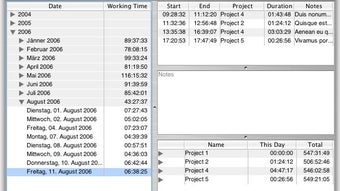
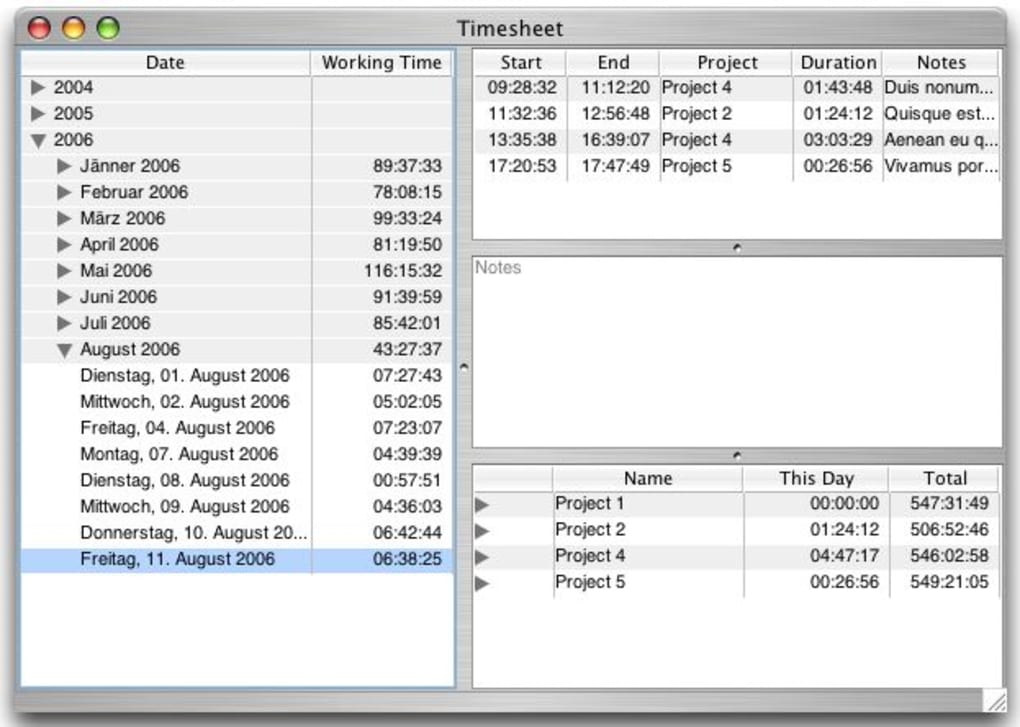
TimeSheet is a lightweight, Java‑based utility designed to help freelancers, consultants, and small teams keep a clear record of the hours they spend on multiple projects. While the interface is intentionally simple—eschewing flashy graphics for a clean, functional layout—the core functionality is solid: you can create projects, log start and end times, and instantly see how much time each task has consumed. The left pane groups entries by date, the central table lists every record, and any entry that is still running displays a live countdown, making it easy to spot unfinished work at a glance.
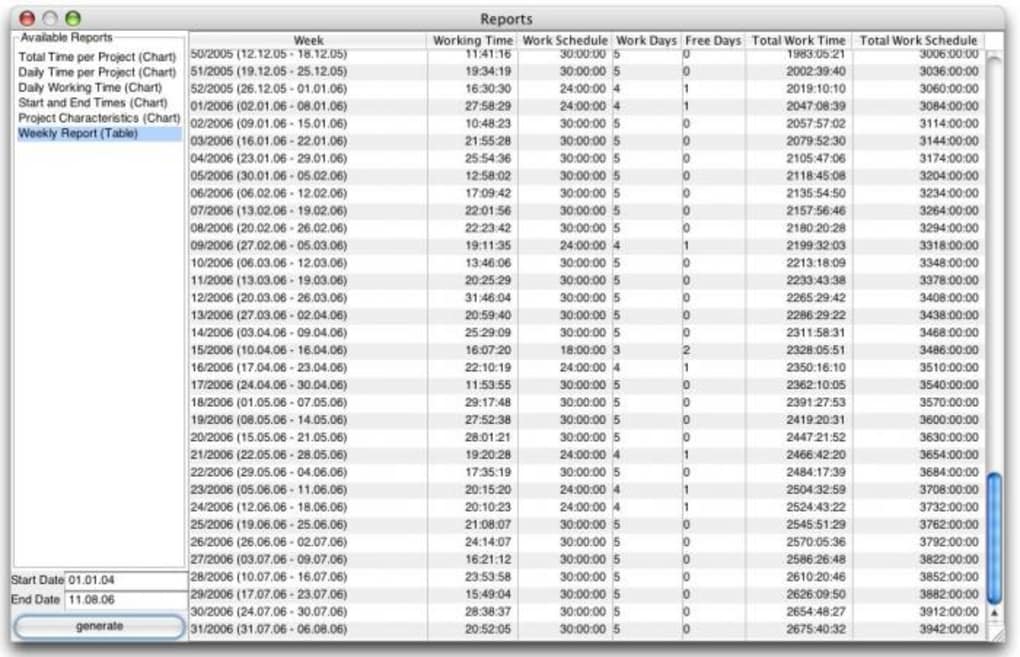
Because it runs on Java, TimeSheet works on any operating system that supports the Java Runtime Environment, including Windows, macOS, and most Linux distributions. The application is completely free, making it an attractive option for users who need basic time‑tracking without a subscription fee. However, the simplicity comes with trade‑offs: the layout cannot be rearranged, editing dates requires exact input, and there is no built‑in reporting or export feature.
For teams that need a quick, no‑frills solution to monitor billable hours, TimeSheet delivers a secure and dependable experience.
Key Features and Functionality
- Create unlimited projects and assign each entry to a specific project.
- Log start and end times manually or let the timer run in real‑time.
- Live countdown for active entries displayed in the central view.
- Date‑based grouping on the left pane for quick navigation.
- Cross‑platform support via Java (Windows, macOS, Linux).
- Free to download and use with no hidden fees.
Pros
- Zero cost: Completely free, no subscription or license key required.
- Cross‑platform: Works on any OS that runs Java, making deployment easy for mixed‑environment teams.
- Simple UI: The straightforward layout reduces the learning curve; new users can start tracking time within minutes.
- Live timer: Real‑time countdown helps prevent forgotten entries and improves accuracy.
- Lightweight: Minimal system resources are used, so it runs smoothly even on older machines.
Cons
- Limited customization: Columns cannot be reordered, and the visual layout is fixed.
- Exact date entry required: Editing timestamps demands precise formatting, which can be cumbersome.
- No reporting tools: There is no built‑in export to CSV or PDF, limiting analysis options.
- Basic UI design: The lack of modern aesthetics may feel dated for users accustomed to polished apps.
- Dependency on Java: Users must have a compatible Java Runtime Environment installed.
Installation, Setup, and Daily Usage
Getting TimeSheet up and running is a straightforward process that can be completed in a few minutes. Follow these steps to download, install, and start tracking your work hours:
Step 1 – Download the installer
Visit the official TimeSheet download page and click the Download for Windows/macOS/Linux button. The file is a compressed .zip archive containing the Java executable (timesheet.jar) and a short README.txt with additional instructions.
Step 2 – Install Java (if needed)
Because TimeSheet runs on Java, ensure that the latest Java Runtime Environment (JRE) version 11 or higher is installed on your machine. You can download it from Oracle’s website or use an open‑source alternative such as AdoptOpenJDK.
Step 3 – Launch the application
Extract the archive to a folder of your choice. Open a command prompt (Windows) or terminal (macOS/Linux), navigate to the extracted directory, and run the following command:
java -jar timesheet.jarThe program will open its main window, displaying the date pane on the left and the entry table in the center.
Step 4 – Create your first project
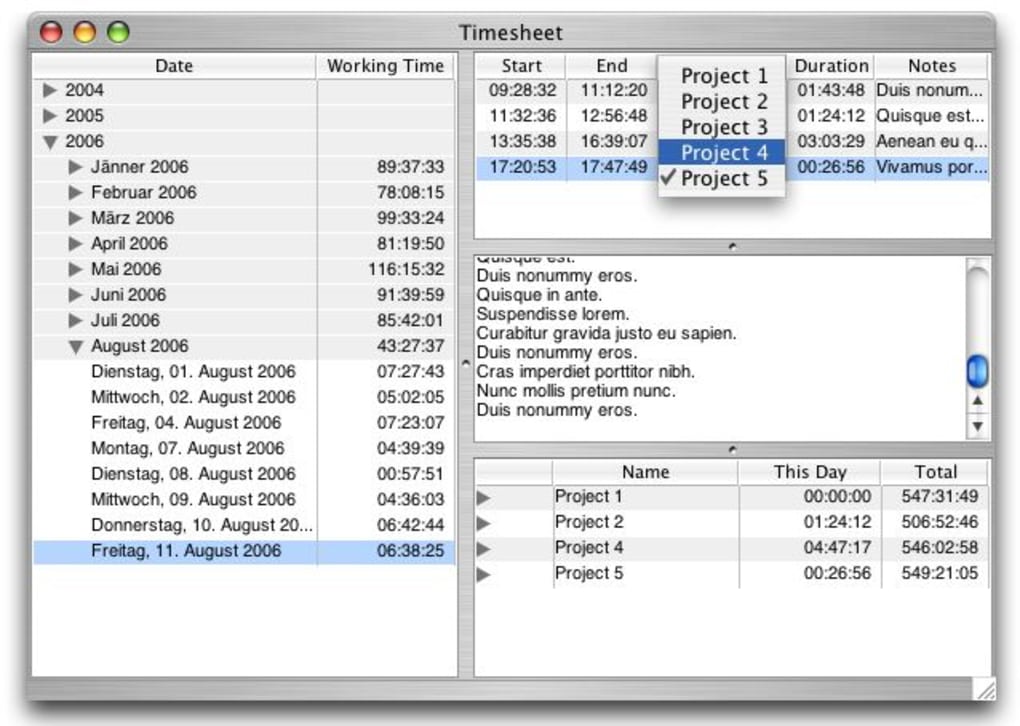
Click the New Project button, type a descriptive name (e.g., “Website Redesign”), and press Enter. Projects appear in a dropdown list when you create new entries, allowing you to keep work separated by client or task.
Step 5 – Log time entries
To start tracking, click New Entry, select the appropriate project, and either type the start time manually or press the Start Timer button. When you finish a task, click Stop Timer or enter the end time yourself. The entry will immediately calculate the total duration and appear in the central view.
Step 6 – Review and adjust entries
Entries can be edited by double‑clicking a row. Remember that TimeSheet requires the date and time format to match the displayed pattern (e.g., YYYY‑MM‑DD HH:mm), otherwise the system will reject the input. Use the left‑hand date navigation to quickly locate entries from a specific day.
Overall, the workflow is designed to keep interruptions to a minimum. Once you become accustomed to the exact input format, you’ll find that logging time takes just a few seconds per task, leaving you free to focus on the work itself.
Compatibility, System Requirements, and FAQ
Operating System Compatibility
TimeSheet runs on any platform that supports Java 11 or later, including:
- Windows 7, 8, 10, 11 (64‑bit)
- macOS 10.13 (High Sierra) and newer
- Popular Linux distributions such as Ubuntu, Fedora, and Debian
System Requirements
- Java Runtime Environment (JRE) 11+
- Minimum 256 MB RAM
- 50 MB free disk space for the application files
- Screen resolution of 1024 × 768 or higher for optimal UI layout
Frequently Asked Questions
Can I export my time entries to CSV or Excel?
The free version of TimeSheet does not include a built‑in export function. However, you can copy the table contents and paste them into a spreadsheet, or use a third‑party Java tool to read the underlying data file.
Is my data stored locally or in the cloud?
All entries are saved locally in a plain‑text file within the application folder. This ensures that your data remains private, but it also means you need to back up the file manually if you want cloud storage.
Can I run multiple instances of TimeSheet on the same computer?
Running more than one instance is not officially supported. Each instance would try to write to the same data file, which could cause corruption. Use separate user accounts if you need isolated tracking.
Does TimeSheet support billable rates or cost calculations?
No, the free version focuses solely on time tracking. For rate calculations you would need to export the data and apply rates manually or consider a paid alternative like TimeLog.
Is there a mobile app that syncs with the desktop version?
TimeSheet does not currently offer Android or iOS apps, nor does it provide synchronization features. It is intended as a desktop‑only solution.
Review Summary
Rating: 3.8/5
Tech Analyst
TimeSheet delivers a functional, no‑cost way to track work hours across multiple projects. Its biggest strengths are the cross‑platform support and the live countdown timer, which help keep tracking accurate. However, the inability to customize columns, the strict date‑entry format, and the lack of reporting tools limit its usefulness for power users. For occasional freelancers or small teams that need a simple log, it’s a solid choice; for larger operations, a more feature‑rich solution may be preferable.
Conclusion & Call to Action
TimeSheet stands out as a practical, free utility for anyone who needs to record work hours without the distraction of complex menus or subscription fees. Its Java foundation guarantees compatibility with Windows, macOS, and Linux, while the minimalist interface ensures that the learning curve is virtually non‑existent. If you value a straightforward, secure, and lightweight tool for daily time‑tracking, downloading TimeSheet is a sensible first step.
Nevertheless, be aware of its limitations: the rigid layout, manual date entry, and absence of export or billing features mean that heavy‑duty users may outgrow it quickly. For those scenarios, exploring more advanced alternatives—such as TimeLog, Toggl Track, or Harvest—might provide the additional functionality you need.
Ready to get started? Click the button below to download the latest version of TimeSheet and begin logging your work instantly. Stay organized, boost productivity, and keep every minute accounted for—completely free.







